
A LITTLE HELP. BACK TO THE GOOD STUFF.
Read in another language
Your language, your way. Start with the site switch; translate the rest when needed.
Many pages are available in English and Taiwanese Traditional Chinese. Use the 中文 / EN switch at the top of the site.
New forum posts and replies receive a saved English and Traditional Chinese version after posting. Some older posts, pending translations, names and linked pages stay in their original language. For those—or any other language—use your browser or phone.
These guides translate written text, not audio. Song titles and artist names may stay in their original language.
Tap a screenshot to enlarge it.
Chrome
- Computer: right-click a blank area of the page and choose Translate to…. Choose another language from the translation panel.
- Only need a sentence? Select it, right-click, then choose Translate selection.
- Android: open ⋮ beside the address bar, then Translate.
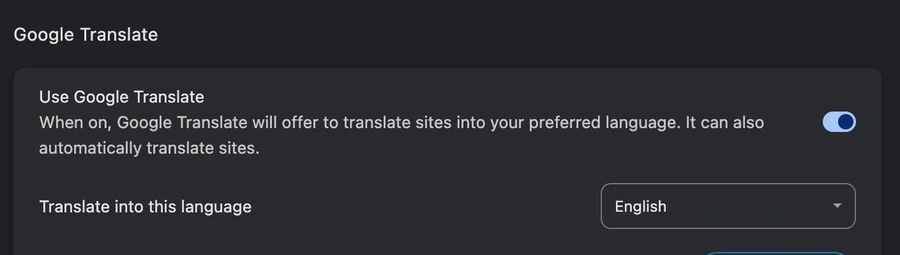
Brave
- Computer: click the translation icon in the address bar, then choose your language. You can also right-click the page and choose Translate.
- Missing the prompt? Open Settings → Languages and check the translation options for that language.
iPhone: Menu → All Settings → Brave Translate. Enable translation there, then use the address-bar icon.
Brave on iPhone ↗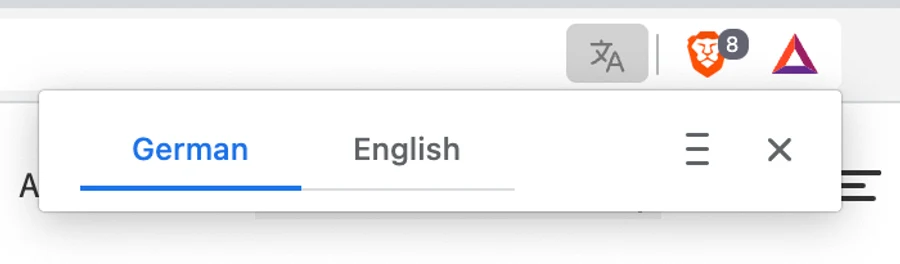
Safari
- Mac: click the translation icon in the address bar, then pick a language. It appears when Safari can translate the page.
- iPhone or iPad: open the Page Menu beside the address, then choose Translate Website if offered.

Microsoft Edge
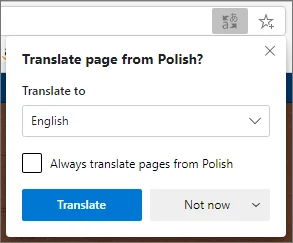
- Click the translation icon in the address bar. Choose a language under Translate to, then press Translate.
- To undo it, open the same panel and choose Show original.
Android: Circle to Search
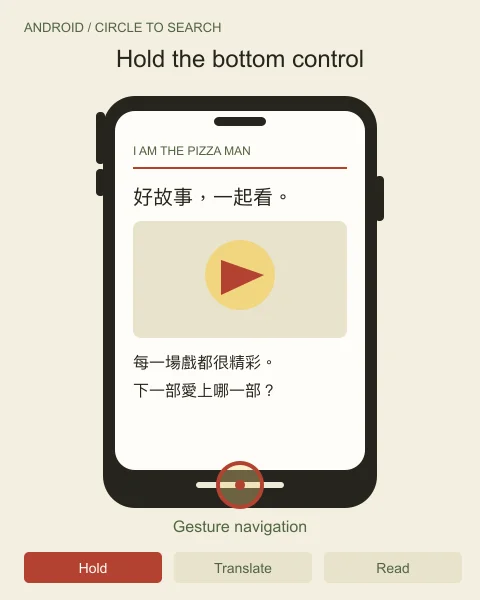
- Touch and hold the Home button or the gesture bar at the bottom of your screen.
- Tap Translate to read the visible screen in your language without switching apps.
- If Scroll and translate appears, turn it on to keep translating as you scroll.
Circle to Search needs a supported Android device and the Google app. If it is unavailable, use Chrome’s Translate option or translate a screenshot with Google Lens.
Official instructions ↗Official instructions ↗Google Lens instructions ↗iPhone: translate your screen
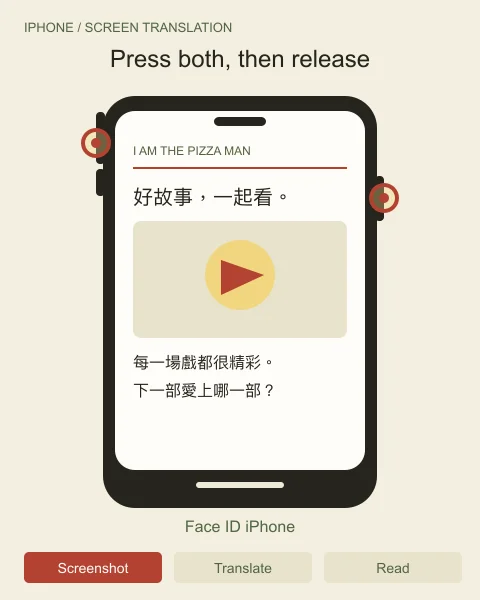
- Take a screenshot. On a Face ID iPhone, press Side + Volume Up together, then release.
- If Translate appears at the bottom of the screenshot screen, tap it. This is the quickest in-place option on supported iPhones.
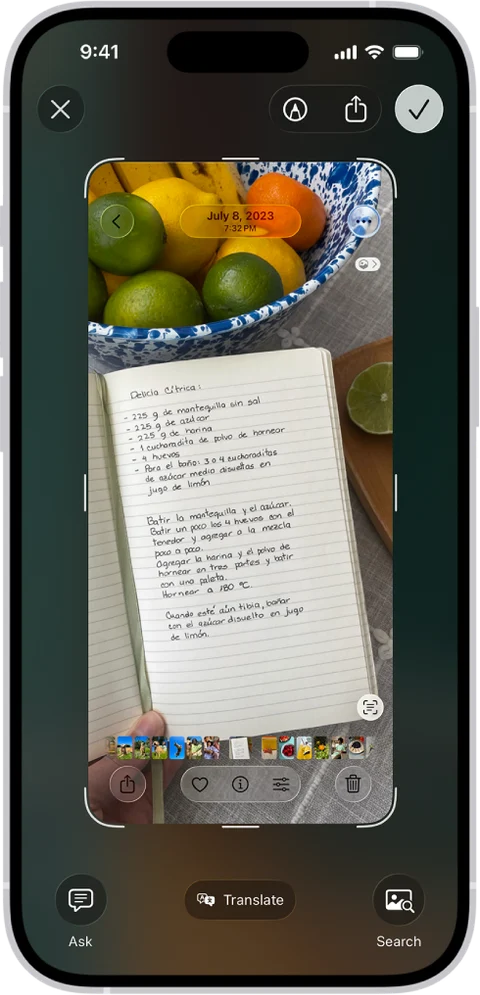
No Translate button? Use Live Text.
- Open the screenshot in Photos. Tap the Live Text icon, then Translate. You can also hold a word to select just part of the text.
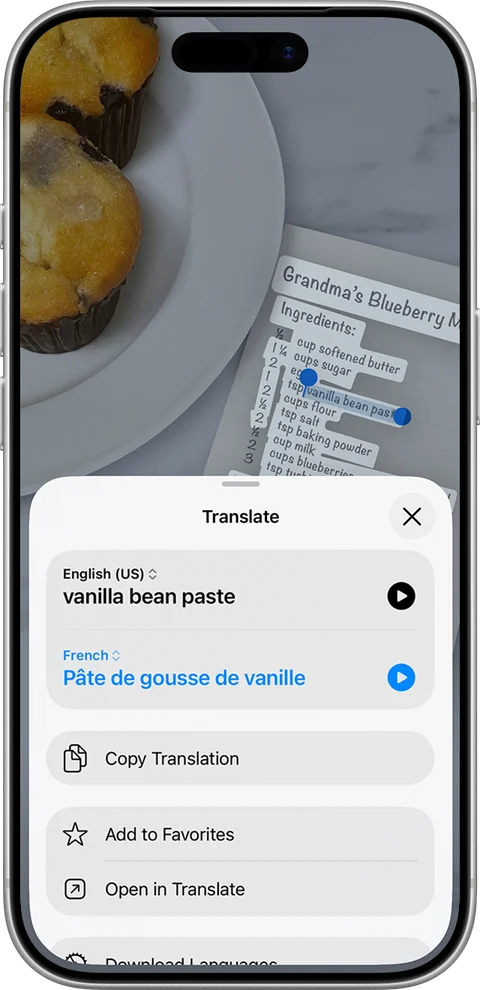
You can also select text in supported apps, then choose Translate from the text menu.
Translate text in apps ↗Live Text works on supported iPhones; available languages vary. On supported Apple Intelligence models, screenshot tools also offer Visual Intelligence. Use Safari’s page translation for a whole webpage.
Official instructions ↗Official instructions ↗Official instructions ↗Not translating? Try this.
Mixed languages, missing buttons & images
- Choose English or 中文 on our site first. For a single untranslated comment, select that text and use your browser’s selection translation.
- Reload after new posts appear, then try Translate again. Browser translation may miss text loaded later.
- For text inside an image, use Circle to Search, Live Text or Google Lens. Full-page translation may not read it.
Browser and screen translation may send page text or screenshots to the software provider. Automatic forum translations can make mistakes; the original is always available.